Blender "Out of GPU Memory" Fix: 10 Ways to Make Your Scene Fit
Cycles says the system is out of GPU memory? Measure what is using it, then work through 10 fixes, from texture limits and tile size to render layers.
You press F12 and Cycles stops with "System is out of GPU memory", or it crawls along far slower than it should. Both usually mean the same thing: your scene does not fit in your graphics card's memory (VRAM). The fix is not always a new GPU. Most scenes can be made to fit by finding what is using the memory and trimming it. This guide shows how to measure, then 10 fixes in the order that usually helps most, for Cycles in Blender 4.x and 5.x.
Why Blender runs out of GPU memory
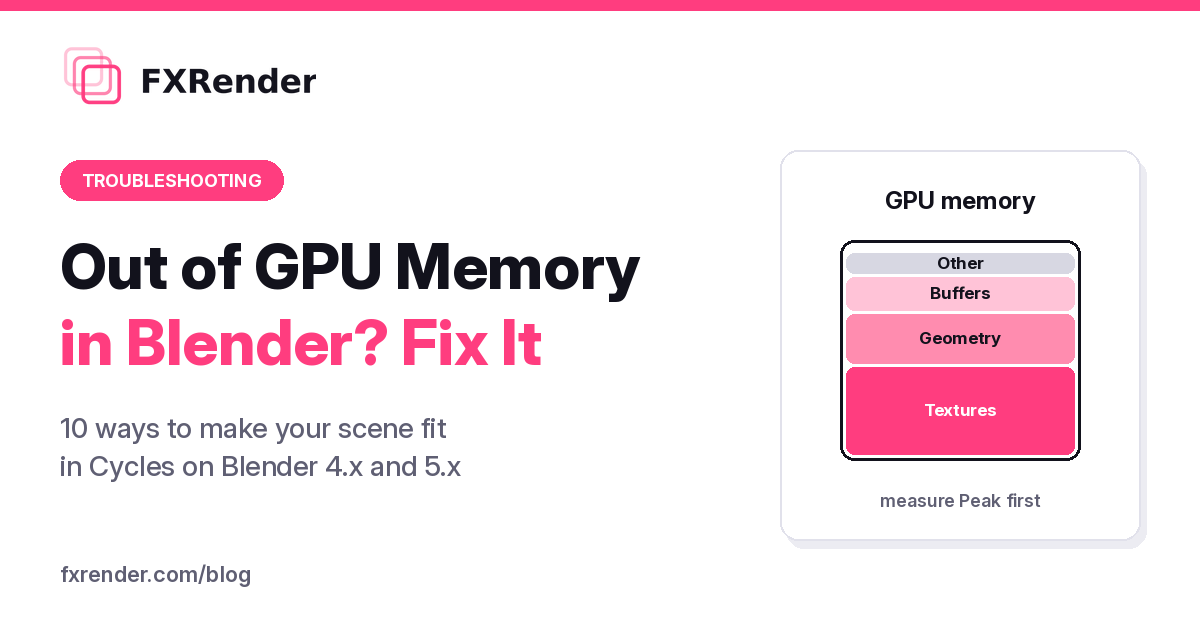
To render on the GPU, Cycles copies the scene to the card: geometry (after modifiers and subdivision), image textures, hair, volumes, the acceleration structure (BVH) and the render buffers for every pass you output. The card's memory is usually much smaller than your system RAM, and part of it is already used by your display, the Blender interface and other apps.
With CUDA, OptiX, HIP and Metal, Blender tries to borrow system memory when the card fills up. The manual says this costs performance but is usually still faster than the CPU. So a scene that slightly overflows often becomes slow rather than failing, and a scene that overflows a lot fails with the error.
One more thing to know: two GPUs do not add up. Each card holds its own copy of the scene, so the scene must fit on each one. The only exception is NVIDIA cards joined with NVLink, where Distribute memory across devices can appear in Preferences.
Step 1: measure peak memory
- Close any viewport in Rendered shading mode. It keeps its own copy of render data on the card. Switch to Solid view before pressing F12.
- Close other GPU-heavy apps: games, browsers with many tabs, video editors.
- Render your heaviest frame. When it finishes, the render window header shows Mem and Peak.
- Optionally tick Memory under Output Properties > Metadata so the peak is stored in each saved image.
- Compare the peak with your card's total VRAM minus what is in use before Blender starts (on Windows, Task Manager > Performance > GPU shows dedicated GPU memory).
Then change one thing at a time and render the same frame again. Whatever moves the peak the most is where your effort should go.
10 fixes for "out of GPU memory" in Blender
1. Limit texture size with Simplify
Textures are usually the biggest consumer. Blender's manual gives these approximate sizes per image: 8K about 256 MB, 4K about 64 MB, 2K about 16 MB, 1K about 4 MB. Tick Render Properties > Simplify, open its Render settings and set the texture limit (shown as Texture Size Limit in current versions) to 4096 or 2048. Every texture above that size is scaled down at render time, with no changes to your files.
2. Turn on the Texture Cache (Blender 5.2 and newer)
In Render Properties > Performance > Texture Cache, enable Auto Generate or press Generate. Cycles writes tiled, mipmapped .tx files into a blender_tx folder next to each image and loads only the tiles and resolutions a render needs. The manual describes the trade-off as lower memory and faster startup on scenes with many textures, for a small render-speed cost and more disk space. You can also generate the files from the command line with blender scene.blend --command maketx. If you send the project to another machine, include the blender_tx folders or let them regenerate there.
3. Lower the Tile Size
In Performance > Memory, lower Tile Size from the default 2048 to 1024 or 512. Cycles renders tile by tile and caches finished tiles to disk, so fewer render buffers sit on the card at once. The manual calls the cost "typically a small performance cost". This mostly helps high-resolution renders and many render passes. A 1920 x 1080 frame fits in a single 2048 tile, so it only splits when you go lower. In Blender 4.x, also check that Use Tiling is ticked.
4. Denoise on the CPU for the final render
GPU denoising needs extra memory on top of the render. In Sampling > Render > Denoise with OpenImageDenoise, untick Use GPU. Denoising is slower on the CPU but no longer competes for VRAM. The OptiX denoiser always runs on the GPU, so switch to OpenImageDenoise if memory is tight.
5. Reduce render passes and resolution
Each enabled pass (Z, Normal, Mist, Cryptomatte, denoising data, light groups) is a full-resolution buffer. Turn off passes you will not use in compositing. If the deliverable is 1080p, do not render at 4K, which has four times the pixels.
6. Cap subdivision and displacement
Subdivision Surface modifiers with high render levels, and adaptive or true displacement, can multiply geometry far beyond what you see in the viewport. Use Simplify > Max Subdivision to cap the whole scene, lower render levels on objects far from camera, and use bump or normal maps instead of displacement where the silhouette does not change.
7. Use instances instead of copies
Duplicating an object with Shift+D creates a new copy of its mesh data. Alt+D (linked duplicate), collection instances, Geometry Nodes instances and particle instances share one copy. For forests, crowds, rocks and set dressing this can save a huge amount of memory. Also check for duplicate materials and images (for example wood.001, wood.002) that load the same texture several times.
8. Trim hair, particles and volumes
Hair curves and child particles add up quickly. Simplify > Child Particles renders a fraction of them, which is often enough for background characters. For smoke, fire and clouds, lower the volume resolution of caches that are far from camera or partly hidden.
9. Remove what the camera cannot see
Hidden high-poly objects with rendering still enabled, off-screen set pieces and unused linked assets all take memory. Disable rendering for them, or use Simplify > Culling (Camera Cull and Distance Cull) on large environments so objects outside the camera view or far away are skipped.
10. Split the scene into layers
If one frame simply holds too much, render it in parts: for example, background environment on one view layer and characters on another, with holdouts so shadows and occlusion stay correct, then combine them in the compositor. Each pass needs only part of the scene in memory.
When the scene still does not fit
You have three options left:
- Render on the CPU. Set Device to CPU. The CPU can use all your system RAM, but it is usually much slower than a modern GPU.
- Use a GPU with more memory. Remember that memory, not speed, is the limit here, and that two smaller cards do not combine (except with NVLink).
- Render elsewhere. A cloud GPU or render farm lets you use larger hardware only for the jobs that need it.
Before you move a heavy scene to another machine, make sure every texture and cache travels with it. Our guide to packing a .blend for a render farm and the packing files docs cover this, and if you use Blender 5.3 projects, see rendering Project Setup files on a farm.
Memory problems often look like speed problems
A scene that spills into system memory can render several times slower without any error. If a render is suddenly much slower than similar scenes, check Mem and Peak first. Our guide to fixing a Blender render that takes too long covers the speed side, and how long a Blender animation takes to render shows how to estimate the total once the scene fits.
FAQ
What does "System is out of GPU memory" mean in Blender?
Cycles needs to hold the scene's geometry, textures and render buffers in your graphics card's memory (VRAM). The error means the scene, plus anything else using the card, needs more than the card has. It is a memory problem, not a speed problem, so a faster card with the same VRAM will not fix it.
Does a second GPU give Blender more memory?
Usually not. Each GPU holds its own full copy of the scene, so the scene must fit on each card. The exception is NVIDIA cards joined with NVLink, where Blender can share memory across devices at a small performance cost. A second card speeds up rendering but does not add room.
Can Blender use system RAM when the GPU is full?
With CUDA, OptiX, HIP and Metal, Blender tries to use system memory when the GPU fills up. It is slower, but according to the manual usually still faster than CPU rendering. If even that is not enough, the render fails with an out of memory error.
How much VRAM do textures use in Blender?
Blender's manual gives these figures for image textures: 8K about 256 MB, 4K about 64 MB, 2K about 16 MB and 1K about 4 MB. Ten unique 8K textures are already around 2.5 GB, which is why texture limits are the first fix to try.
Should I render on the CPU if I run out of GPU memory?
It is a valid fallback, since the CPU can use all of your system RAM, but it is usually much slower. Try the fixes in this guide first, then use the CPU or a machine with more GPU memory for scenes that still do not fit.
Why does my scene run out of GPU memory only on some frames?
Memory use changes with what is on screen. Frames with more objects, hair, volumes or textures in view need more, and an open Rendered viewport or another app can take memory too. Measure peak memory on the heaviest frame and close the Rendered viewport before you render.
Render heavy scenes on cloud GPUs
If your scene only fits after cutting quality you want to keep, FXRender is one option. It is a Blender cloud GPU render farm: upload a .blend or a .zip project, choose the frames and download the results, at $1.50 per GPU-hour. New accounts get 15 free minutes, which is enough to check that your heaviest frame renders, and packs are Pro $5, Gold $10 and Diamond $45 (how pricing works). Every job has full per-frame logs, so if a frame fails you see Blender's own error, and you can automate submits with the CLI or MCP. Plan the budget first with the render cost calculator.